

FAQ(English)
How do I make an ILL borrowing request?
1. First, enter information on the materials you are looking for.
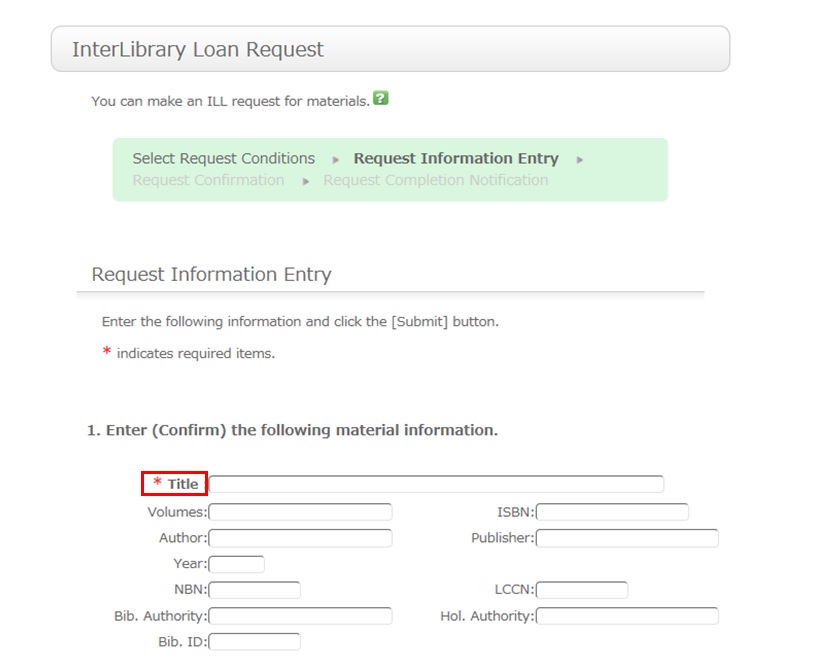
To be certain about obtaining those materials, enter as much detailed information as you can.
In particular, if you found them in a database or other such system, write the name of this system in the bibliography authority.
* Bold characters indicate required fields.
2. Next, enter your own information in the client information fields.
Note that if your contact information has an error, the materials cannot be promptly handed to you.
So be sure to enter the correct contact information for getting in touch with you.
3. Next, enter information about your request, information about the payment method, and remarks.
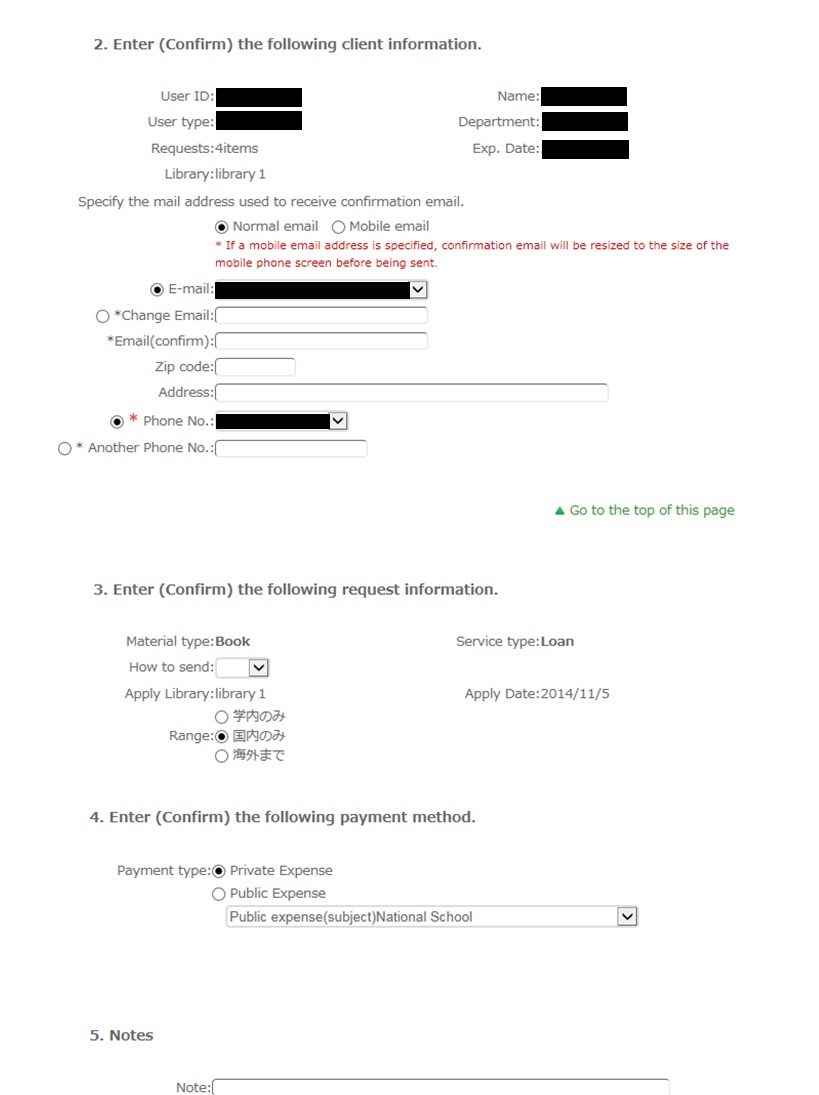
Write information regarding your request, such as the delivery method and information on the receiving library.
Also, select the range of the request.
In particular, note that copy requests from outside Japan may cost more and may take more time than those from inside Japan. Check your request carefully.
For the payment method, you can select private expense or public expense.
To apply for payment at public expense, you must have a public expense budget.
You may have information other than the above to report separately. Examples include "Cancel the request if the use is limited to the premises" and "Cancel the request if copying is not permitted." Enter such information in the Remarks field.
Once you have entered the above details, click the [Submit] button, and confirm the details on the confirmation screen.
When there are no problems, click the [OK] button to complete the procedure.
How do I cancel a submitted copy request (ILL copy request)?
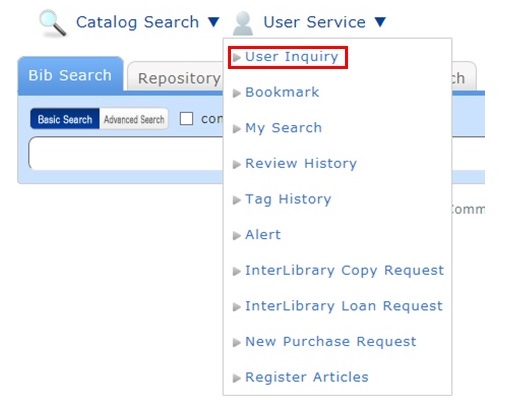
You can confirm your loaned out materials and various requested materials on the user inquiry screen.
Select "Go to Copy Request List" in the information relating to copy requests, among those requests.
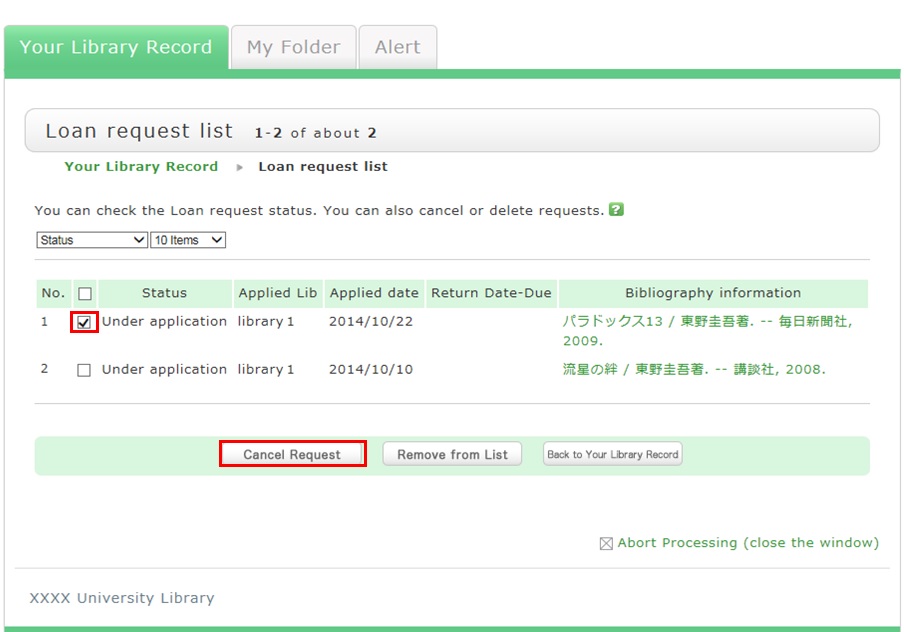
As a result, you can check a list of the copy requests that are current requests.
If you want cancel the request for a material in this list, place a check mark beside the material and click the [Cancel Request] button.
What kind of personal services are available?
The personal services offered are broadly divided into the following three functions.
1. User Inquiry
Use this function to browse your current borrowing status, apply for an extension of the borrowing period, and change data such as personal information.
2. My Folder
This function is used to save search conditions, save search results, and browse the tag/review history.
3. Alert
This function notifies you of the arrival of new books and serials at the library.
What can I do from Your Library Record in CHOIS?
Renewal and export to the book management tool are both possible from the list. To do so, enter a check mark in each appropriate check box.
Click a bookmark title to check the status in detail.
Reservation
Canceling a reservation, deleting one from the list, and export to the book management tool are all possible from the list. To do so, enter a check mark in each appropriate check box.
Click a bookmark title to check the reservation status in detail.
Copy request
Canceling a copy request, deleting one from the list, and export to the book management tool are all possible from the list. To do so, enter a check mark in each appropriate check box.
Click a bookmark title to check the status in detail.
Borrowing request
Canceling a borrowing request, deleting one from the list, and export to the book management tool are all possible from the list. To do so, enter a check mark in each appropriate check box.
Click a bookmark title to check the request status in detail.
Borrowing history
Deleting an item from the list and export to the book management tool are both possible from the list. To do so, enter a check mark in each appropriate check box.
Click a bookmark title to check the borrowing history in detail.
Personal Info.
You can check and update your personal information. You can use the updated information to apply for a reservation, etc.
How do I change personal information in CHOIS?
Log in to CHOIS.

Click " Your Library Record"
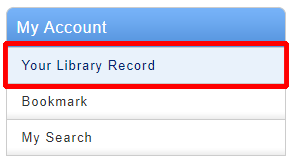
Click " Personal info"

Click " Change Personal info"
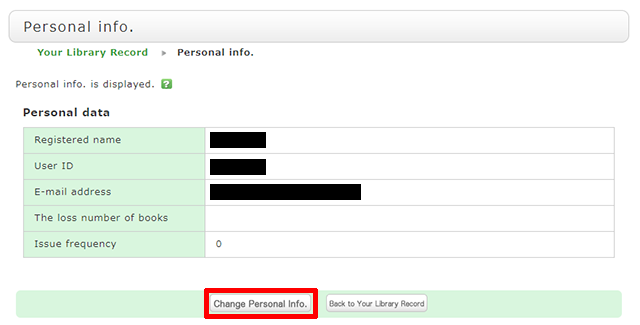
Click [Change Personal Info.] on the next screen, and make your changes. (You will be able to select the updated information, such as an e-mail address, even for a reservation, ILL copy request, and ILL borrowing request.)
What is My Folder?
The following functions in the MyAccount are collectively called My Folder.
That allows you to create the list of books and journals which collect from search results of CHOIS.
You can register the bibliography of books you have already read or wish to read.
You can directly export the list to "RefWorks" or "EndNoteWeb".
2.My Search
By selecting from my search, you can search with the same criteria again.
I want to keep a bibliographic record of CHOIS to be checked at a later date. Is it possible?
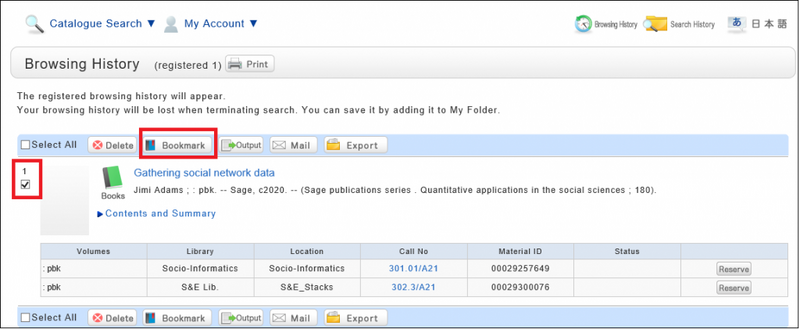
Search or Browsing History automatically save until the browser is closed (or the operation is stopped for a long time).
You can use them by clicking the [Browsing History] button.
* This screen displays after "Browsing History" is clicked.
If you want to check materials at a later date, save them in a bookmark.
You can register them at the search result list or the bibliography details screen.
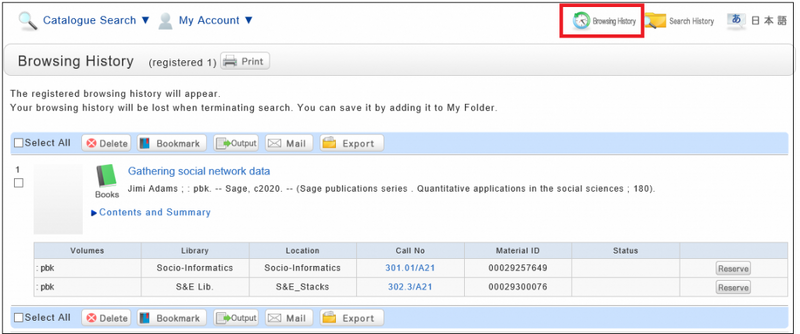
If you register them at Search Result list Screen, Select the check box of the materials you want to bookmark and click [Bookmark] button.
You can confirm the list you saved at the ”Bookmark” in My folder tab.
I want to save search conditions to use in a search at a later date. Can this be done?
You can check the search history by clicking the [Search History] button at the top of the screen.
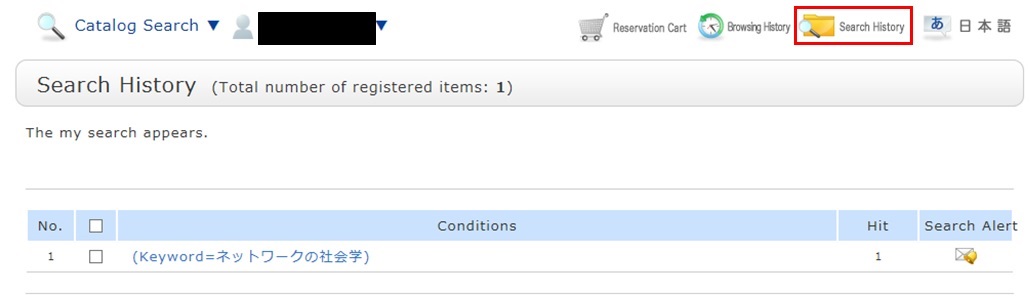
* The screenshot is the screen displayed when "Search History" is clicked.
To save search conditions until a later date by registering them from the search history browsing screen, enter a check mark in the check box of each search condition, and click the [Add to Favorites] button.
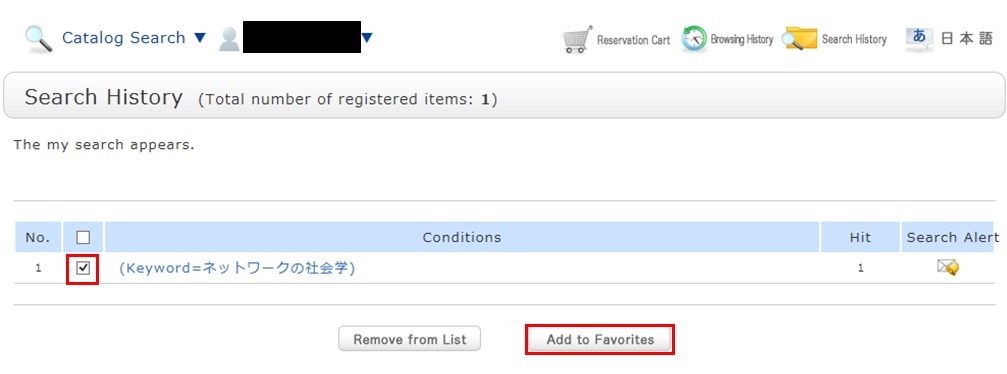
You can check the registered contents from My Search in OPAC.
What do I do when I want to extend the borrowing period of a loaned out book?
1. Click "Your Library Record" and log in to CHOIS.
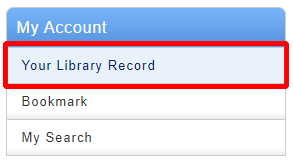
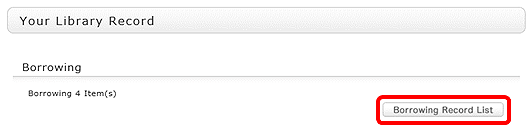
2. "User Inquiry" appears after login. Click "Borrowing Record list" .
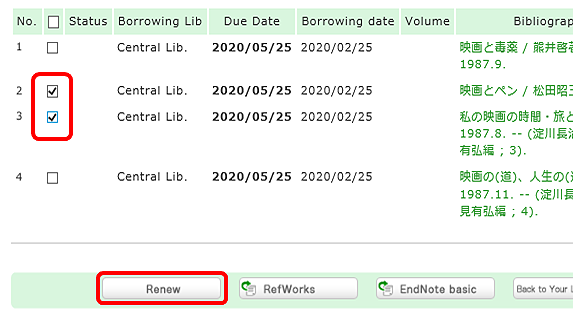
3. "Borrowing list" appears. Place a check mark beside each material you want to renew, and click [Renew]. In "Borrowing list," you can check the borrowing status: where (borrowing library), what (bibliography information), and when (Due Date).
In "Borrowing list," you can check the borrowing status: where (borrowing library), what (bibliography information), and when (Due Date).
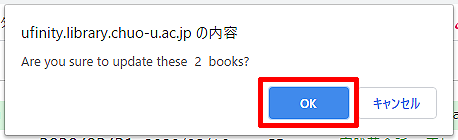
4. Click [OK] in the pop-up.
5. The update is completed when the return date is extended. If the update cannot be completed, the screen displays this fact and the reason for it.
How do I cancel a reservation?
1. Click " Your Library Record" and log in to CHOIS.
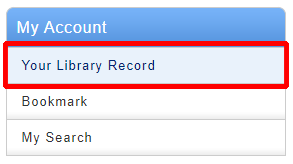
2. Click "Reservation" from User Inquiry on the OPAC top page.

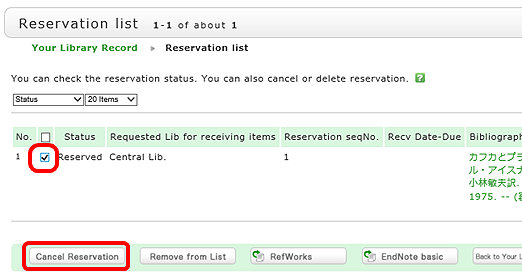
3. The reservation list screen appears. Place a check mark beside the material whose reservation you want to cancel, and click [Cancel Reservation].
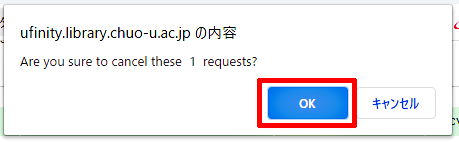
4. Click [OK] in the pop-up.
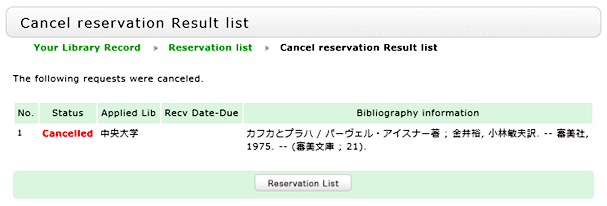
5. "Canceled" appears under Status upon the completion of the reservation cancellation.
| Sun | Mon | Tue | Wed | Thu | Fri | Sat |
27 | 28 | 29 | 30 | 1 | 2 | 3 |
4 | 5 | 6 | 7 | 8 | 9 | 10 |
11 | 12 | 13 | 14 | 15 | 16 | 17 |
18 | 19 | 20 | 21 | 22 | 23 | 24 |
25 | 26 | 27 | 28 | 29 | 30 | 31 |