


FAQ(English)
I can't log in to CHOIS.
If you do not have the Integrated Authentication account, please enter your library card number.
If you forget password…
・ Integrated Authentication account user: Please ask at the IT Center.
・ Library card user: Please ask at the circulation desk.
What kind of personal services are available?
The personal services offered are broadly divided into the following three functions.
1. User Inquiry
Use this function to browse your current borrowing status, apply for an extension of the borrowing period, and change data such as personal information.
2. My Folder
This function is used to save search conditions, save search results, and browse the tag/review history.
3. Alert
This function notifies you of the arrival of new books and serials at the library.
What can I do from Your Library Record in CHOIS?
Renewal and export to the book management tool are both possible from the list. To do so, enter a check mark in each appropriate check box.
Click a bookmark title to check the status in detail.
Reservation
Canceling a reservation, deleting one from the list, and export to the book management tool are all possible from the list. To do so, enter a check mark in each appropriate check box.
Click a bookmark title to check the reservation status in detail.
Copy request
Canceling a copy request, deleting one from the list, and export to the book management tool are all possible from the list. To do so, enter a check mark in each appropriate check box.
Click a bookmark title to check the status in detail.
Borrowing request
Canceling a borrowing request, deleting one from the list, and export to the book management tool are all possible from the list. To do so, enter a check mark in each appropriate check box.
Click a bookmark title to check the request status in detail.
Borrowing history
Deleting an item from the list and export to the book management tool are both possible from the list. To do so, enter a check mark in each appropriate check box.
Click a bookmark title to check the borrowing history in detail.
Personal Info.
You can check and update your personal information. You can use the updated information to apply for a reservation, etc.
How do I change personal information in CHOIS?
Log in to CHOIS.

Click " Your Library Record"
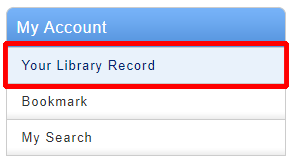
Click " Personal info"

Click " Change Personal info"
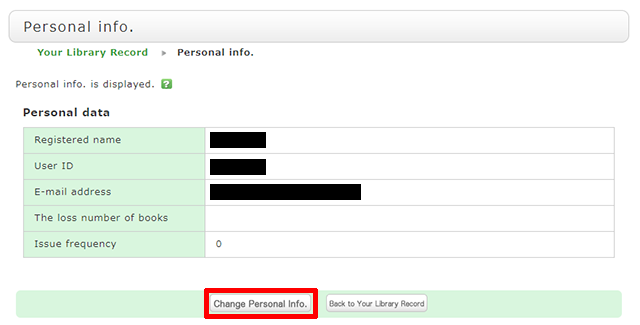
Click [Change Personal Info.] on the next screen, and make your changes. (You will be able to select the updated information, such as an e-mail address, even for a reservation, ILL copy request, and ILL borrowing request.)
What is My Folder?
The following functions in the MyAccount are collectively called My Folder.
That allows you to create the list of books and journals which collect from search results of CHOIS.
You can register the bibliography of books you have already read or wish to read.
You can directly export the list to "RefWorks" or "EndNoteWeb".
2.My Search
By selecting from my search, you can search with the same criteria again.
I want to keep a bibliographic record of CHOIS to be checked at a later date. Is it possible?
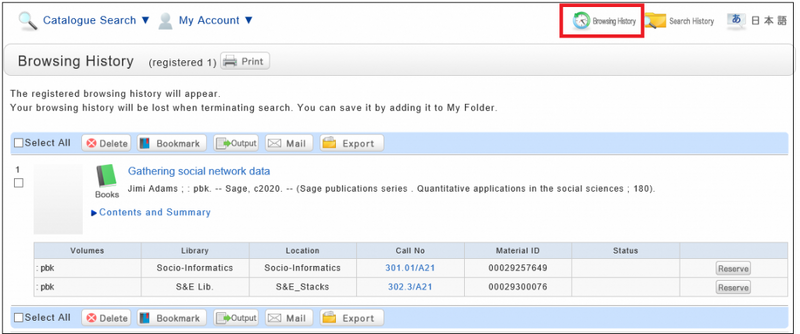
Search or Browsing History automatically save until the browser is closed (or the operation is stopped for a long time).
You can use them by clicking the [Browsing History] button.
* This screen displays after "Browsing History" is clicked.
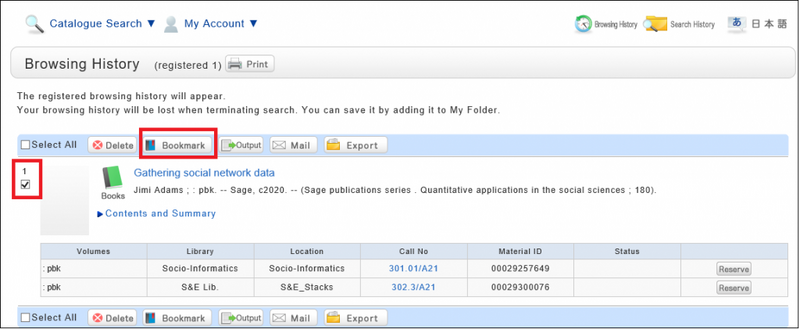
If you want to check materials at a later date, save them in a bookmark.
You can register them at the search result list or the bibliography details screen.
If you register them at Search Result list Screen, Select the check box of the materials you want to bookmark and click [Bookmark] button.
You can confirm the list you saved at the ”Bookmark” in My folder tab.
I want to save search conditions to use in a search at a later date. Can this be done?
You can check the search history by clicking the [Search History] button at the top of the screen.
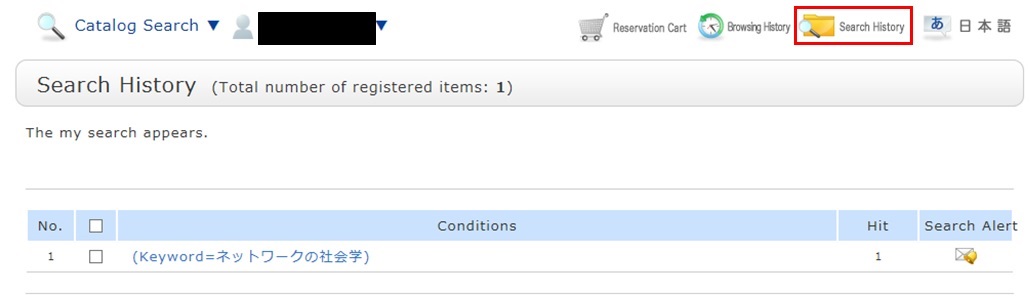
* The screenshot is the screen displayed when "Search History" is clicked.
To save search conditions until a later date by registering them from the search history browsing screen, enter a check mark in the check box of each search condition, and click the [Add to Favorites] button.
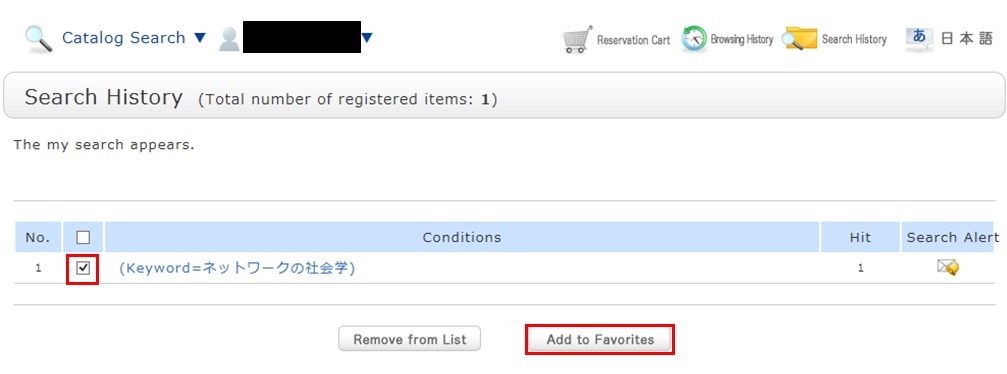
You can check the registered contents from My Search in OPAC.
| Sun | Mon | Tue | Wed | Thu | Fri | Sat |
27 | 28 | 29 | 30 | 1 | 2 | 3 |
4 | 5 | 6 | 7 | 8 | 9 | 10 |
11 | 12 | 13 | 14 | 15 | 16 | 17 |
18 | 19 | 20 | 21 | 22 | 23 | 24 |
25 | 26 | 27 | 28 | 29 | 30 | 31 |